HomeUser Guide › Custom Icons
Make it yours

Give every input its own custom icon

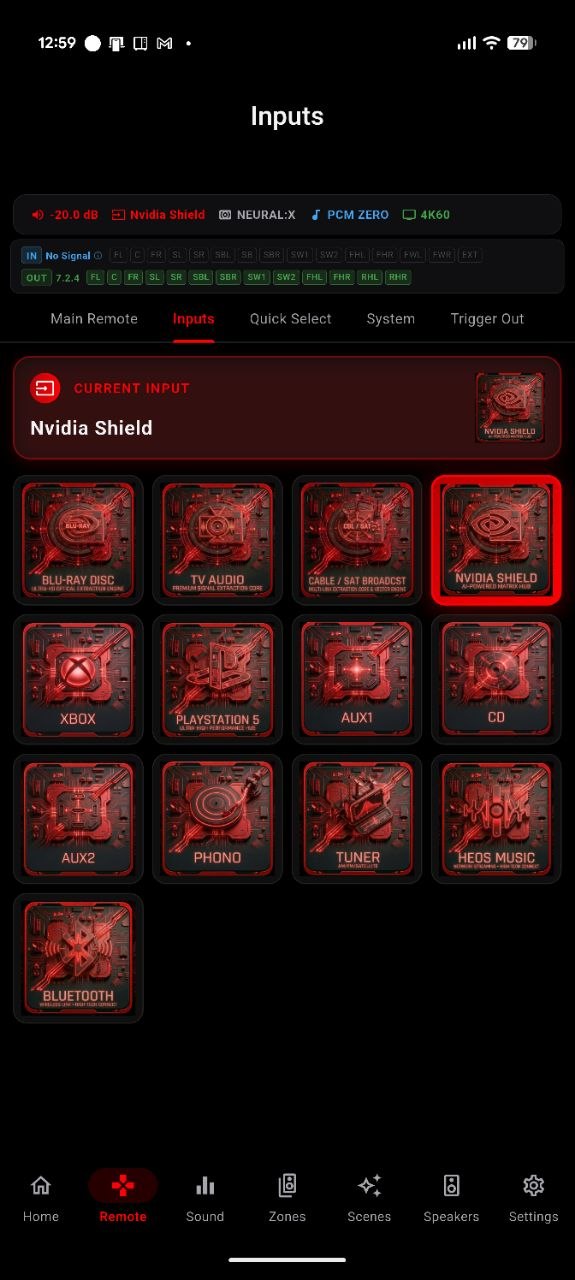
Swap the stock artwork for your own. Drop a Blu-ray cover on your player, your console's logo on the game input, a turntable on Phono - whatever makes the source obvious at a glance. Your icons show on the input tiles, the home dashboard and the Remote, and travel with your settings backup.
Add an icon in a few taps

Scenes too

Custom artwork for your Scenes

Every saved Scene can carry its own image as well. Open the Scene's Icon & Color sheet, upload an image, and crop it the same way. A "Movie Night" Scene can wear a film reel, "Vinyl Sunday" a record - so your one-tap setups are as recognizable as your inputs.

Want the image to fill the whole tile? Custom source and Scene icons can hide their label, so the artwork centers and fills edge to edge with no text on top. Turn the label back on any time from the same Icon & Color sheet.
Common questions

Custom icons FAQ

Where do custom input icons show up?
On the input tiles in the Remote tab's input list, on the input card on your home dashboard, and on the Remote tab's current-input card - everywhere that source appears in the app.
What image formats can I use?
PNG, JPG, ICO, WebP and more. The passport-style cropper lets you position, zoom and shape any of them.
Can I use custom icons for Scenes?
Yes. Open a saved Scene's Icon & Color sheet and upload an image the same way. See the Scenes guide for more on building and recalling Scenes.
Will my icons survive a reinstall or a new phone?
Yes - custom icons are stored in the app's settings backup. Back up from Settings, restore on the new device, and your artwork comes with it.
Can I hide the label so the image fills the tile?
Yes. Both custom source icons and custom Scene icons have a hide-label option, so the image centers and fills the tile with no text overlaid.

Make your inputs unmistakable

One-time purchase, no ads, no subscriptions. Connect in under a minute.

Get it on Google Play Download on the App Store Download on the Mac App Store Get it on the Microsoft Store

Back to the full User Guide →