HomeUser Guide › Sound
The Sound tab

Every audio control your receiver has, in one tab

The Sound tab is nine pages deep, and it mirrors your receiver's own audio menu rather than a simplified version of it. This page walks all nine: what each control does, what it expects, and why the receiver sometimes refuses to let you touch it.

What is in here

The nine pages

PageWhat it controls
SurroundThe sound mode, grouped Movie / Music / Game / Pure, plus the audio feature readout
Dialog & DRCDialog Enhancer strength and Dynamic Range Compression
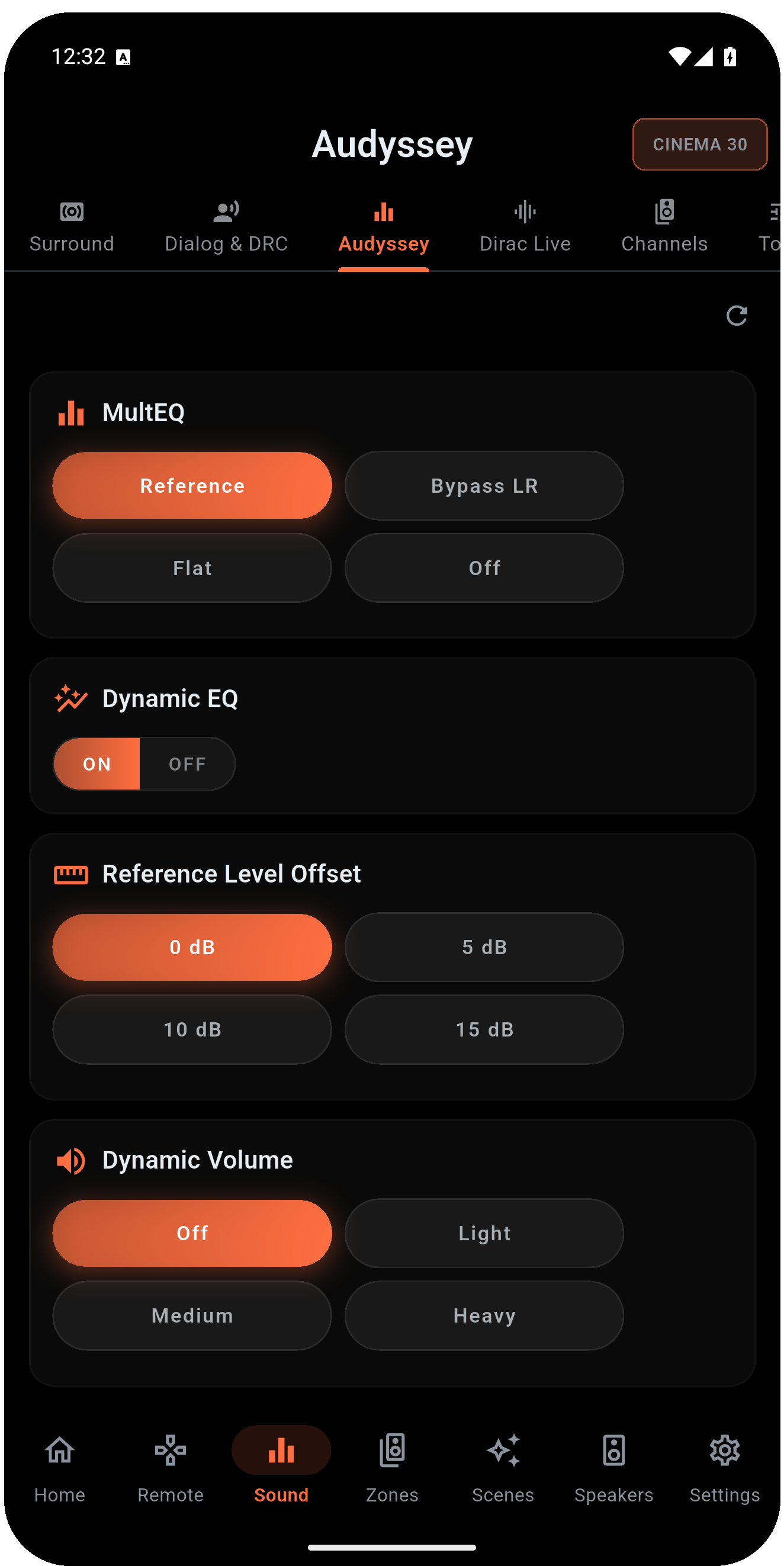
AudysseyMultEQ, Dynamic EQ, Reference Level Offset, Dynamic Volume, Surround Level Compensation
Dirac LiveYour loaded filter slots by name, and Off
Graphic EQA 9-band curve per speaker, 63Hz to 16kHz
ChannelsPer-channel trim in dB for every speaker in the current signal, plus Bass Sync
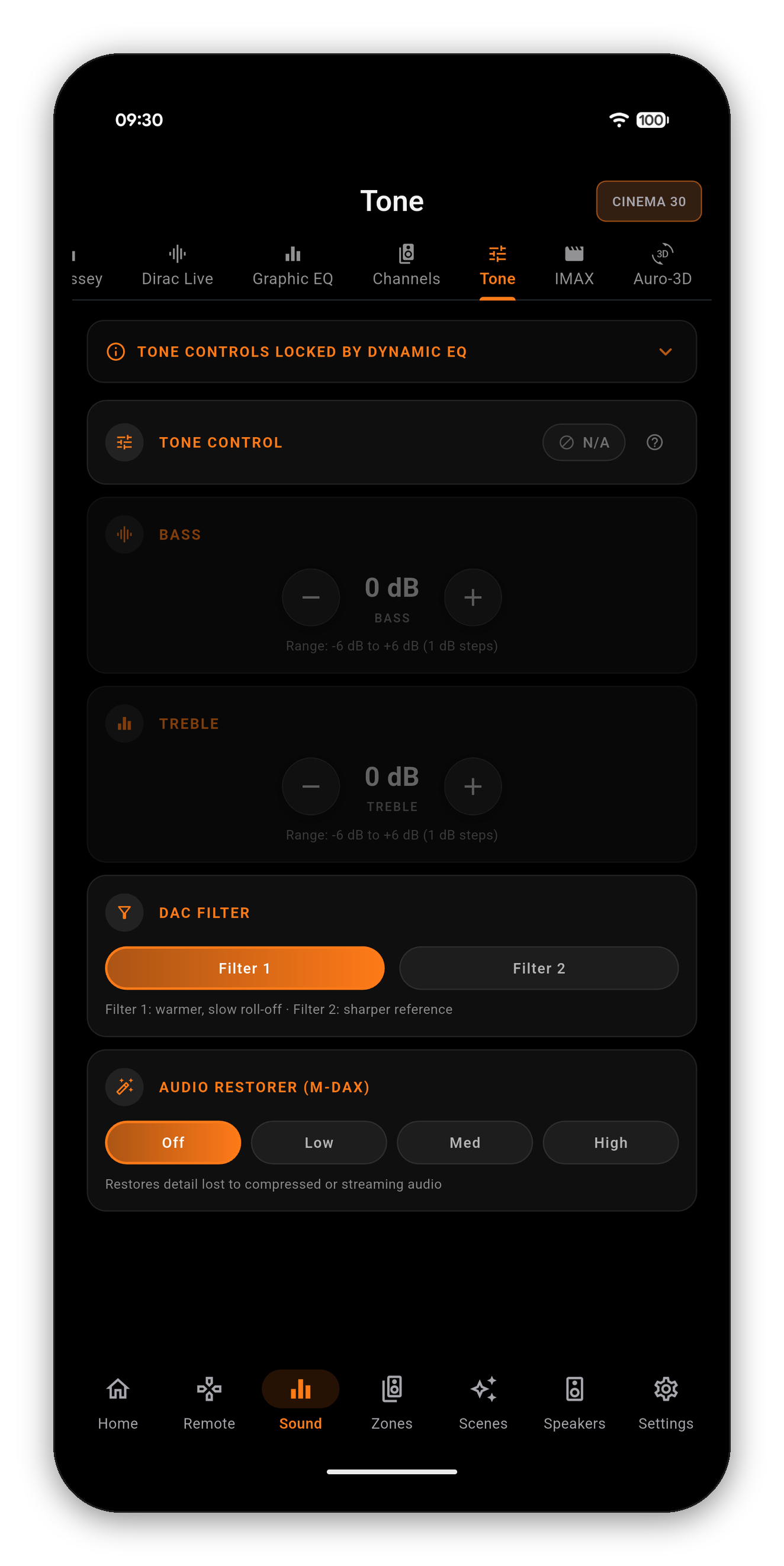
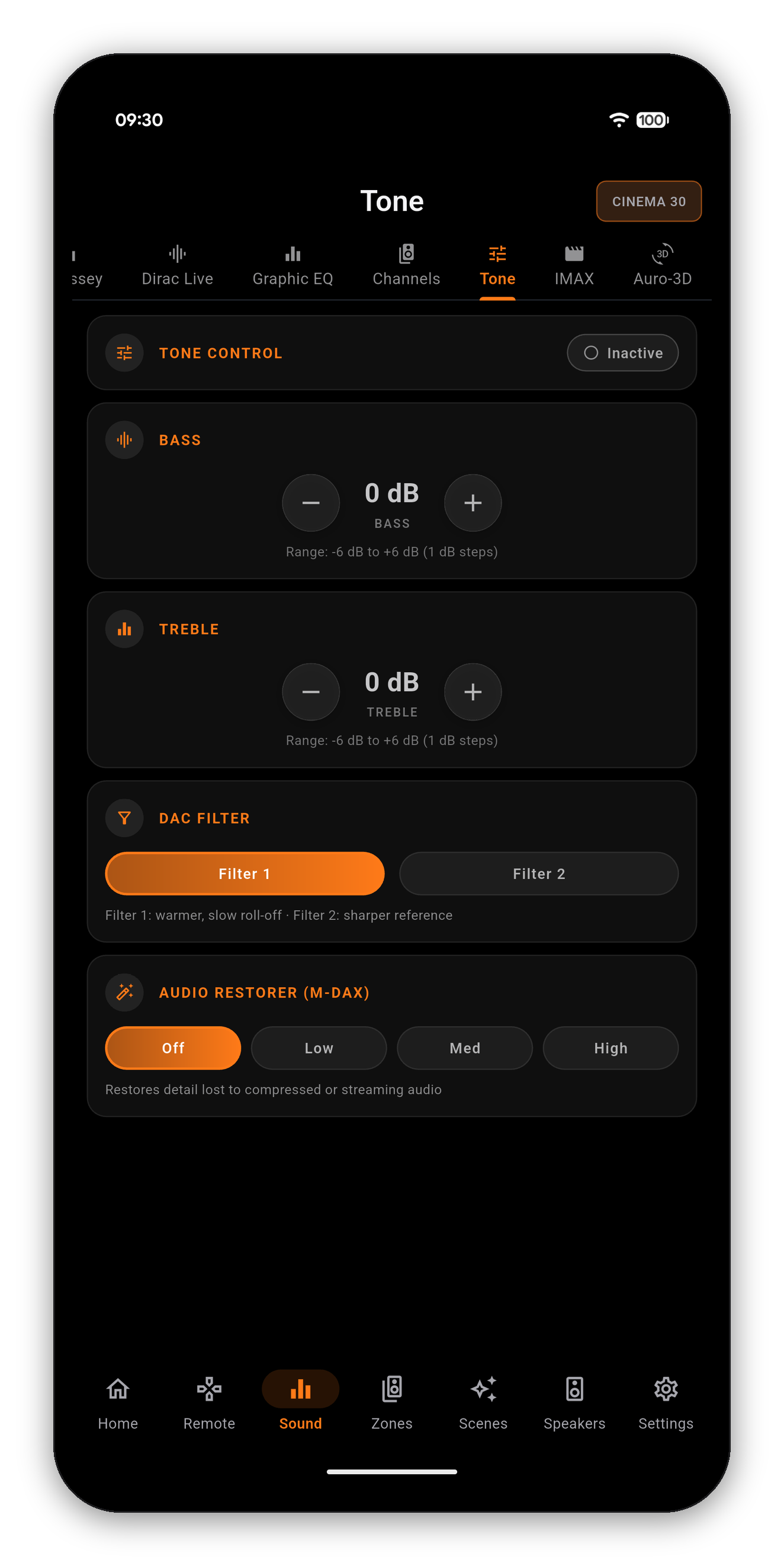
ToneTone Control, Bass, Treble, DAC filter, Audio Restorer (M-DAX)
IMAXIMAX Enhanced mode and its own HPF, LPF and subwoofer routing
Auro-3DAuromatic preset, Strength and Auro 3D Mode
Your receiver decides which of these appear. A chassis without Auro-3D licensing simply has no Auro-3D page, and one without an IMAX Enhanced decoder has no IMAX page. AVR Maestro asks the receiver what it has rather than assuming a model.
Page one

Surround: the mode, and what the receiver is actually doing

The top card shows the current mode exactly as the receiver reports it. Below it, the modes are grouped into Movie, Music, Game and Pure, and only the modes the receiver will accept for the signal it is decoding right now are offered.
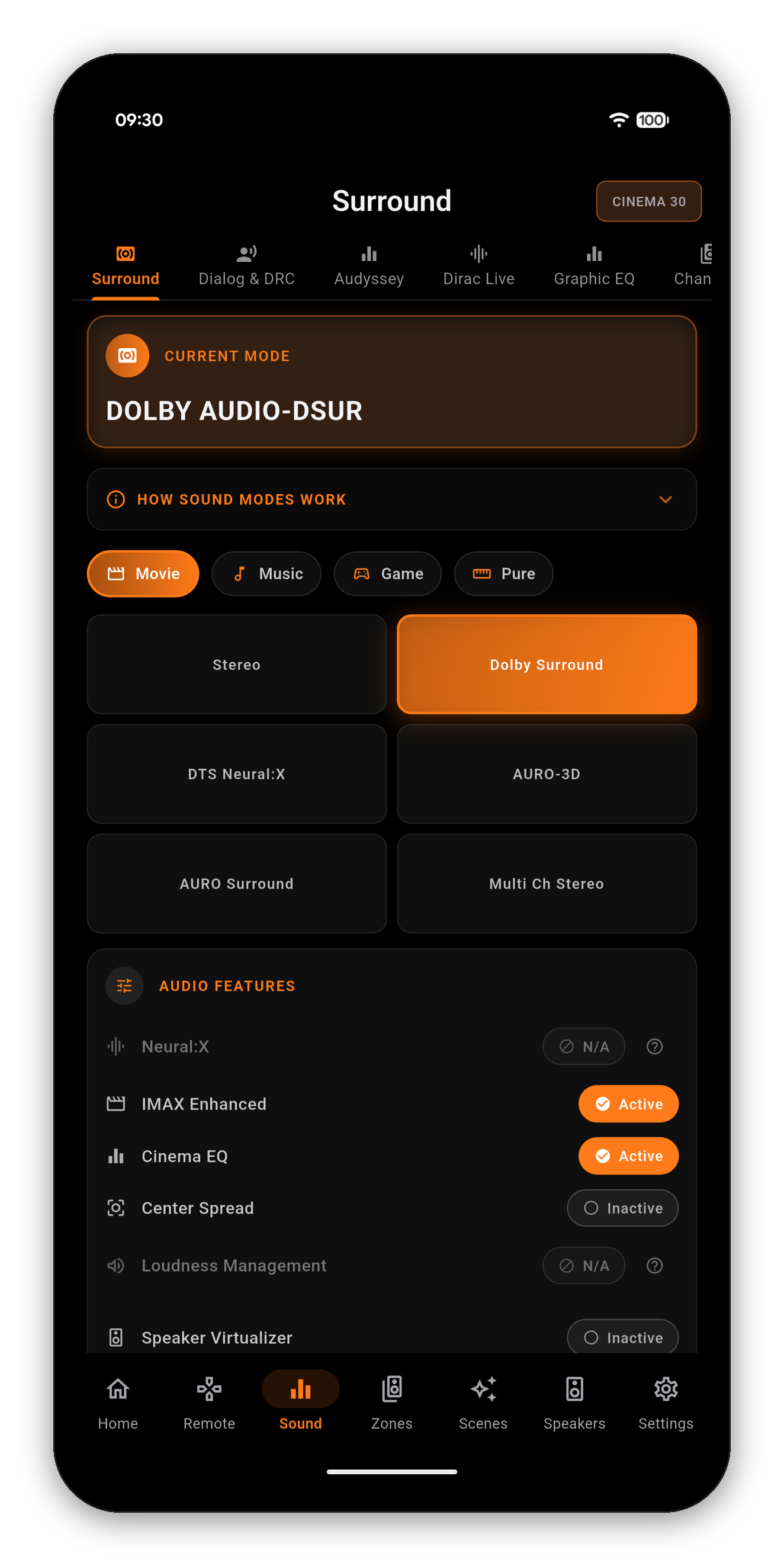
  • Stereo, Dolby Surround, DTS Neural:X, Auro-3D, Auro Surround, Multi Ch Stereo and the rest appear as your chassis and the incoming stream allow.
  • Audio Features underneath is a live readout, not a wish list: Neural:X, IMAX Enhanced, Cinema EQ, Center Spread, Loudness Management, Speaker Virtualizer and friends each show Active, Inactive or N/A.
  • N/A means the current signal cannot use that feature. Tap the question mark beside it and the app explains which signal would.
The Surround page showing the current mode and the audio features readout
Page two

Dialog & DRC: intelligibility and night listening

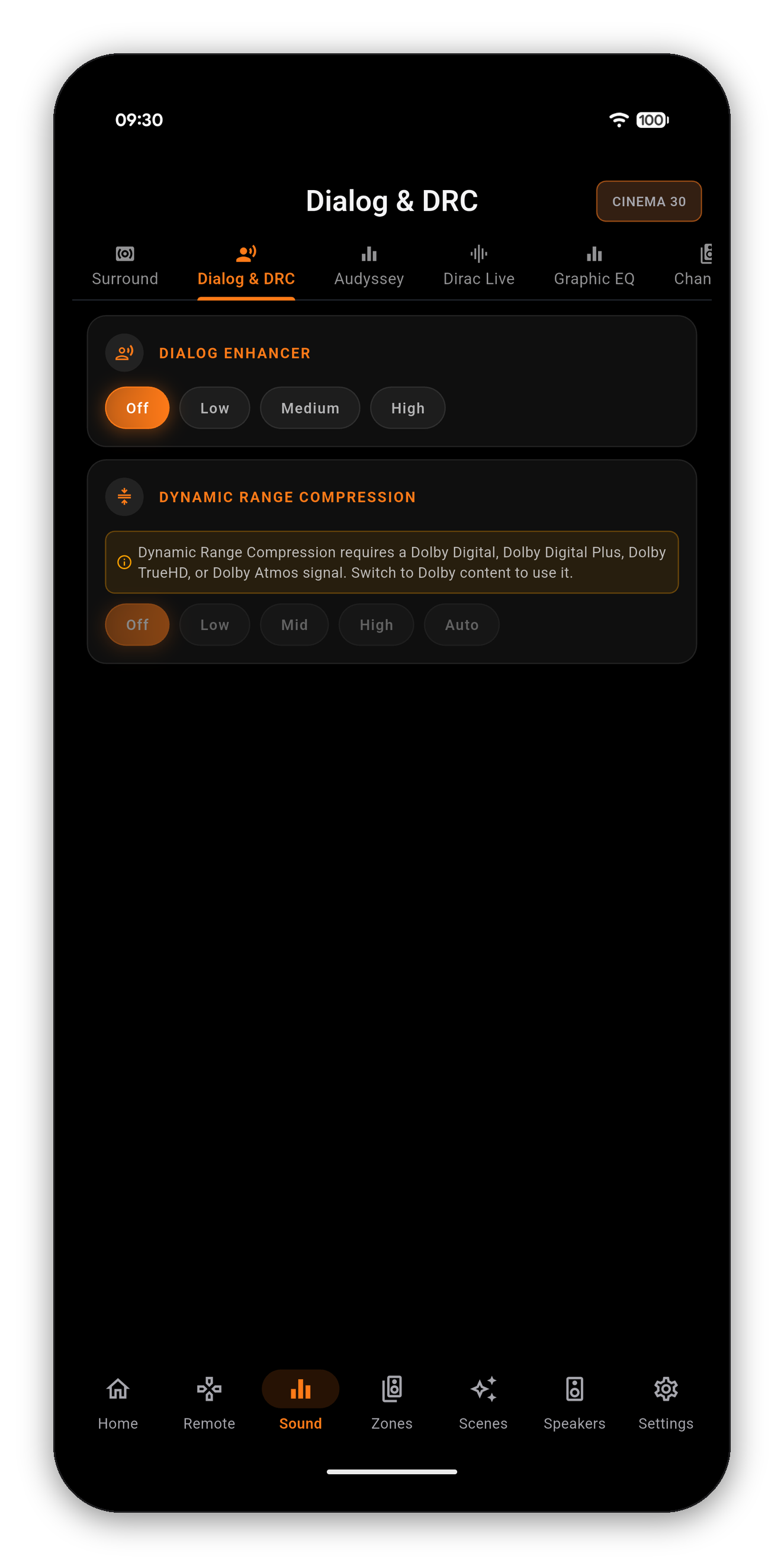
  • Dialog Enhancer - Off, Low, Medium or High. Lifts the centre-channel intelligibility without touching your calibration.
  • Dynamic Range Compression - Off, Low, Mid, High or Auto. Squeezes the gap between whispers and explosions, which is what you want late at night.

DRC is the clearest example of how AVR Maestro handles a control the receiver will not accept. Compression data is carried inside a Dolby bitstream, so on a PCM, DTS or network stereo source there is nothing to compress. Rather than let you press a button that does nothing, the app greys the row and prints the reason: switch to Dolby Digital, Dolby Digital Plus, Dolby TrueHD or Dolby Atmos content to use it.
Dialog and DRC, with Dynamic Range Compression greyed out and explained
Page three

Audyssey: the whole calibration menu, not just MultEQ

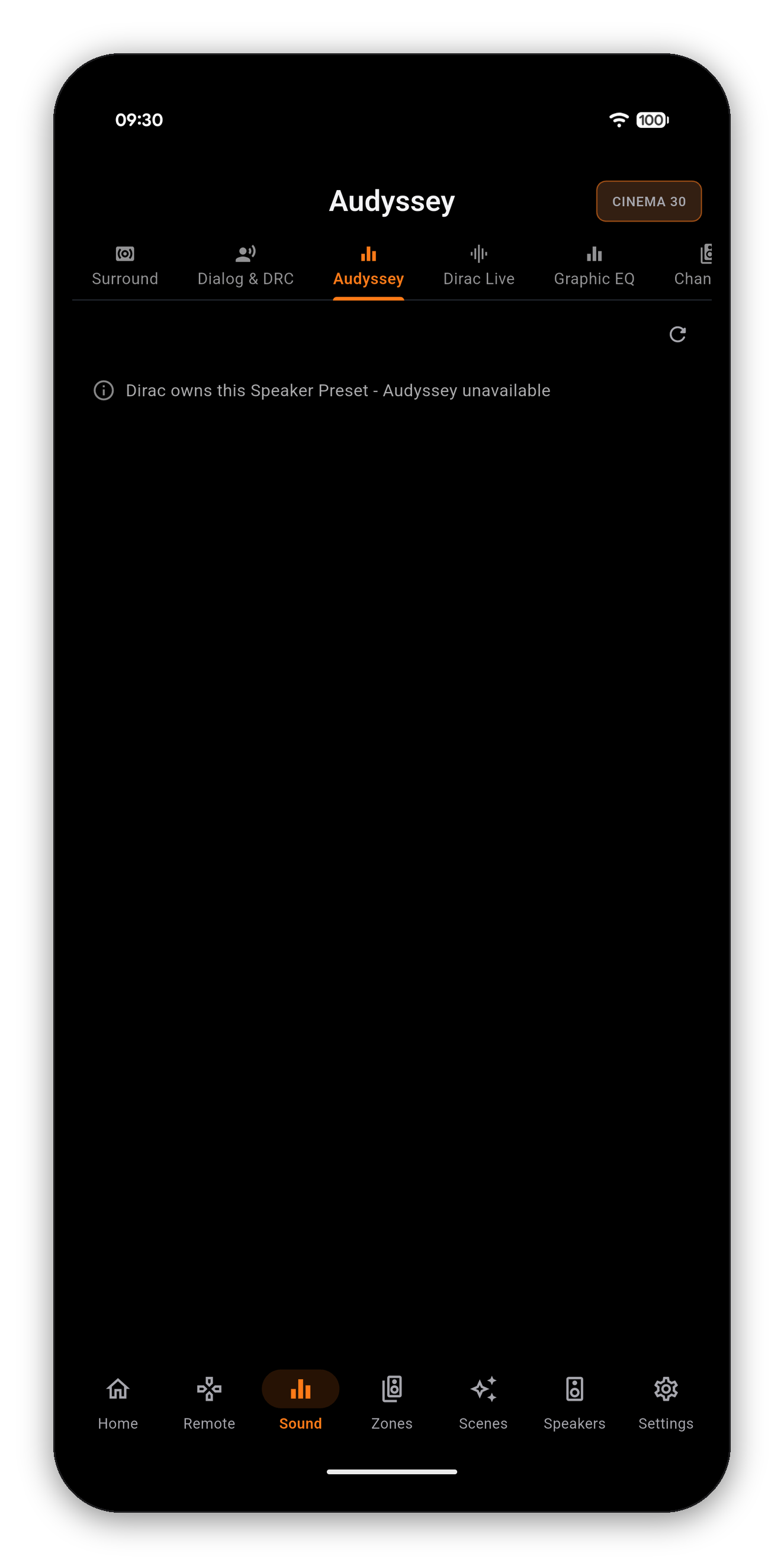
Whether this page is editable depends on which system owns the current Speaker Preset. See why a control is locked.
Page four

Dirac Live: your filters, by the names you gave them

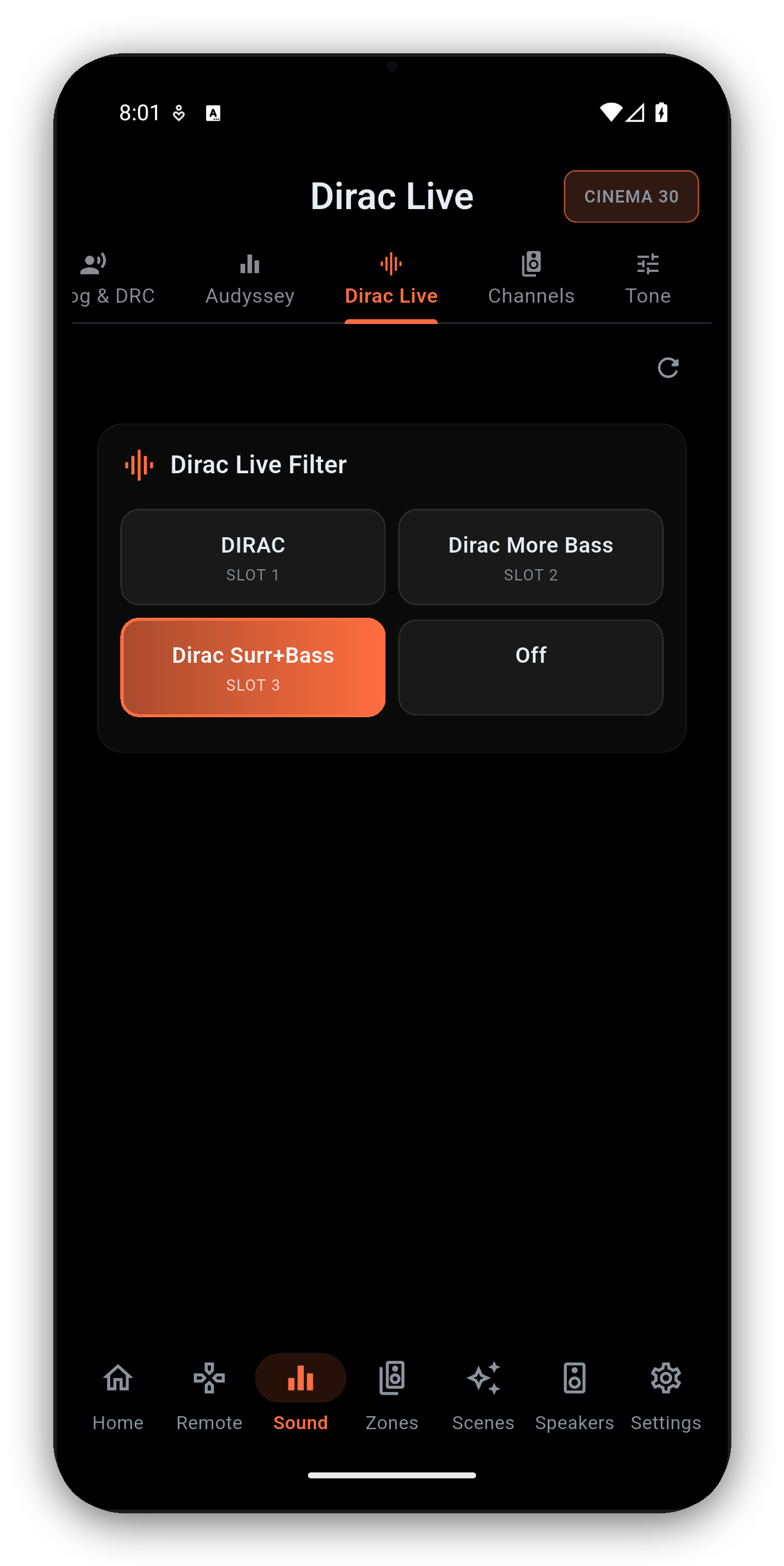
If you have run Dirac Live, the filters you exported sit in numbered slots on the receiver. AVR Maestro lists them by the name you saved them under, with the slot number underneath, plus an Off entry to run the preset with no filter at all. One tap swaps filters.

On a Speaker Preset that has no Dirac filter loaded, the page says so plainly instead of showing an empty list.
The Dirac Live page listing filter slots by their saved names
Page five

Graphic EQ: nine bands, per speaker

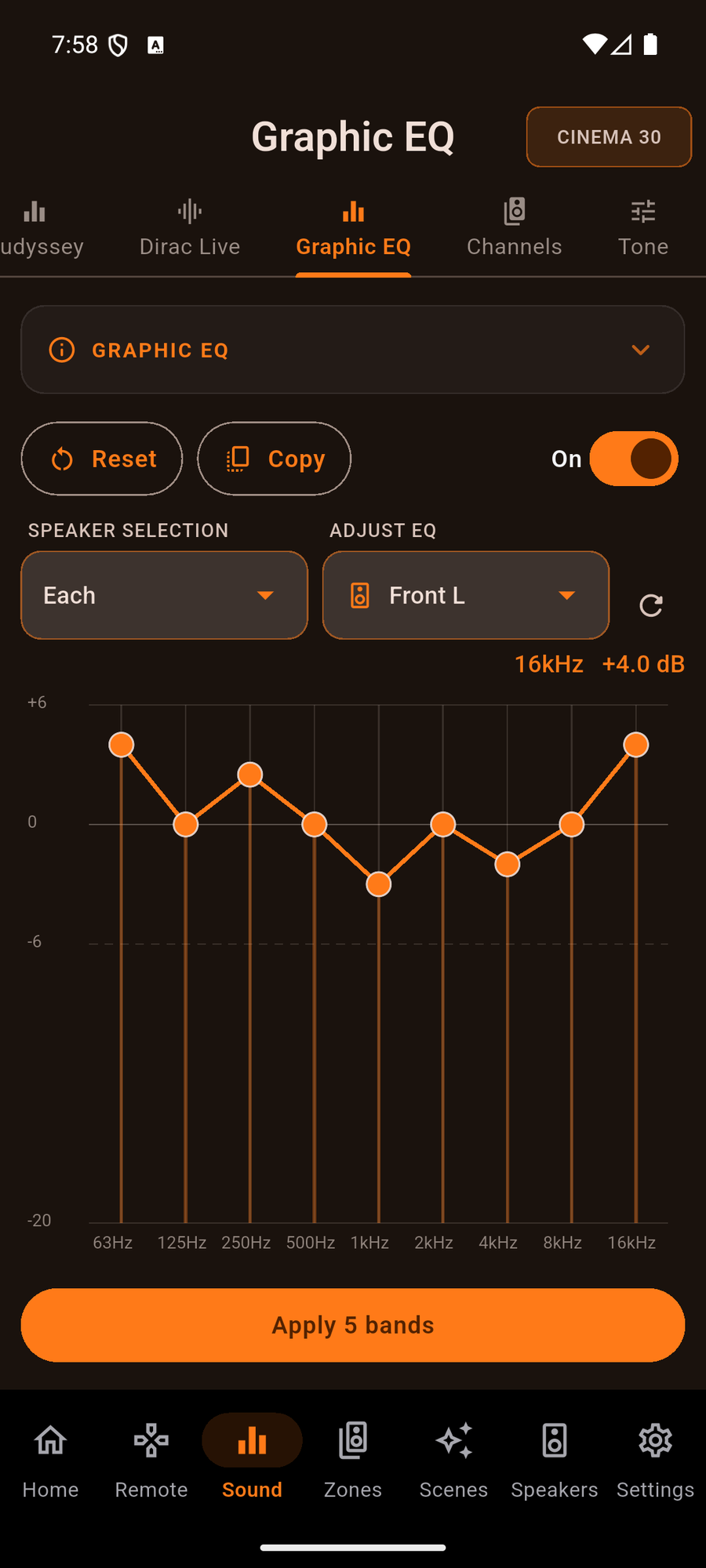
A real editor, not a toggle: nine bands from 63Hz to 16kHz, -20 to +6 dB, dragged on the graph. Choose All, Left/Right or Each speaker, use Copy to start from your measured Audyssey curve, Reset to flatten, and the pending-changes bar to apply.

The receiver runs room correction or the manual EQ, never both, so this page is locked whenever MultEQ or Dirac is running - and it names which one.
The full Graphic EQ guide →

The Graphic EQ editor with a 9-band curve per speaker
Page six

Channels: trim any speaker while the film is running

Per-channel trim in dB for every speaker present in the current signal - Front Left, Front Right, Center, the surrounds, the surround backs, both subwoofers and the height layer, each with its short name underneath so there is no guessing which is which.

  • Plus and minus nudge a single channel while you listen.
  • Reset All puts every channel back to 0 dB.
  • Bass Sync at the bottom time-aligns the LFE channel against the mains.

These are the live per-signal trims. The per-speaker reference levels stored on the Speaker Preset live on the Speakers tab instead, and the app explains the difference in the page's own info card.
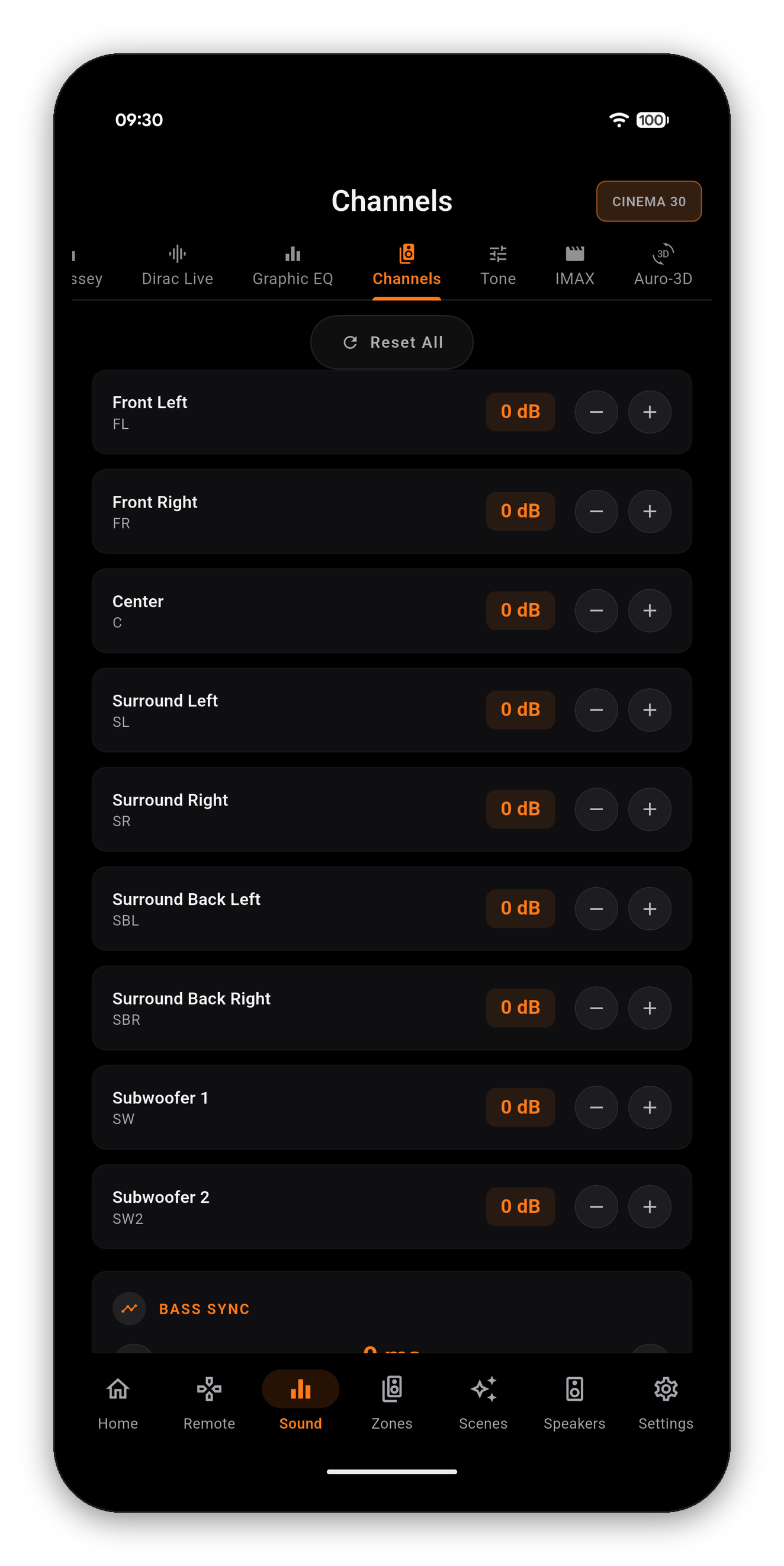
The Channels page with per-channel dB trim for every speaker
Page seven

Tone: bass, treble, the DAC filter and M-DAX

Audyssey Dynamic EQ owns the tone controls while it is running: the receiver takes them over, and AVR Maestro shows a banner saying so rather than leaving you to wonder why Bass does nothing.
Page eight

IMAX: the full Enhanced settings menu

On a chassis with IMAX Enhanced, the app exposes the whole menu rather than just the on/off:
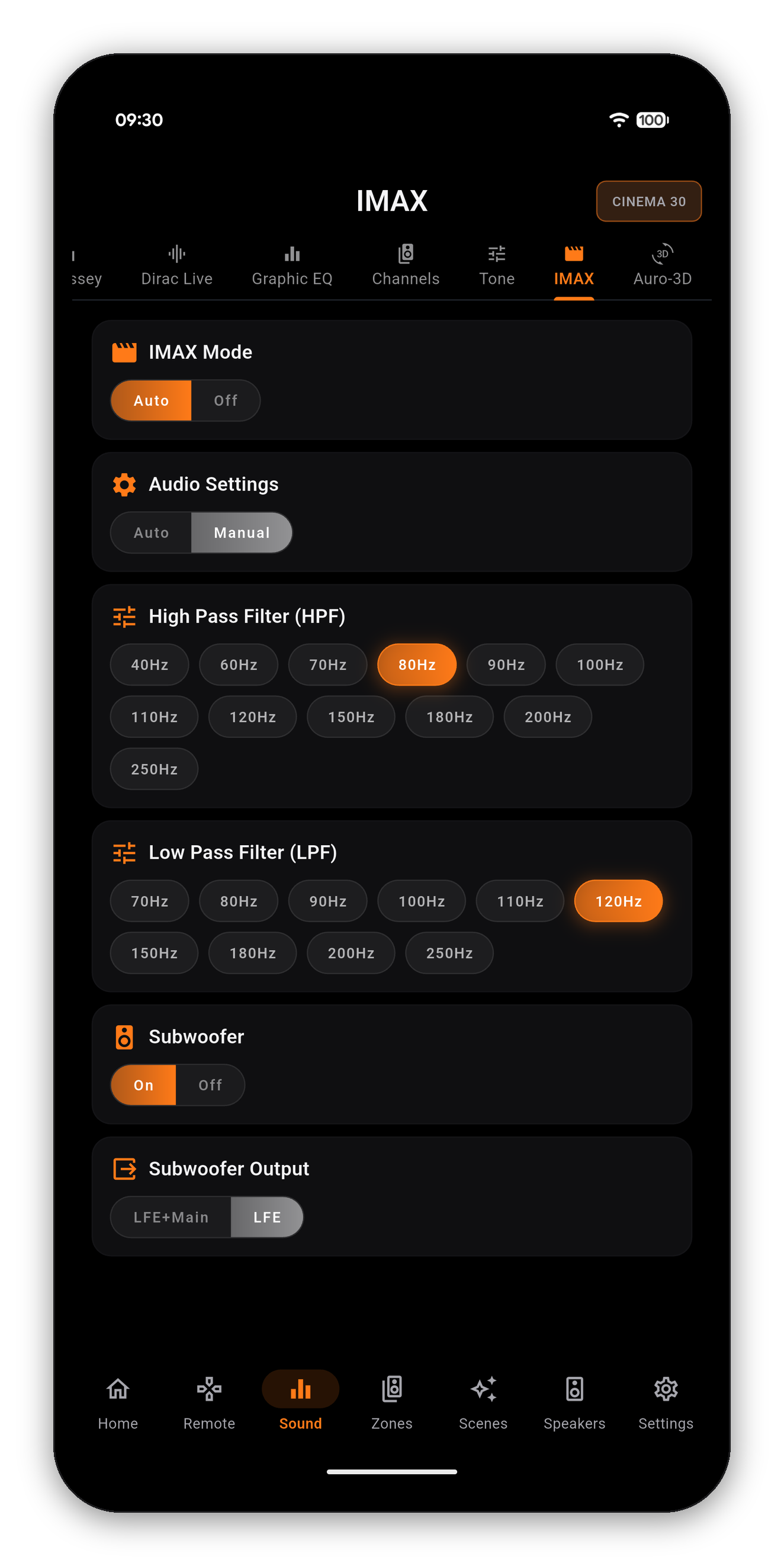
  • IMAX Mode - Auto or Off.
  • Audio Settings - Auto follows the IMAX recommendation; Manual opens the four controls below.
  • High Pass Filter - 40Hz through 250Hz.
  • Low Pass Filter - 70Hz through 250Hz.
  • Subwoofer - On or Off, and Subwoofer Output - LFE+Main or LFE.
The IMAX page with mode, filters and subwoofer routing
Page nine

Auro-3D: upmixing with a shape

  • Auromatic 3D Preset - Small, Medium, Large, Speech or Movie. Picks the room and content character the upmixer aims at.
  • Strength - 0 to 15, for how much height information Auromatic generates.
  • Auro 3D Mode - Direct, or Channel Expansion.

These only apply while an Auro mode is selected on the Surround page, and the page is only present on a chassis that carries the Auro-3D decoder.
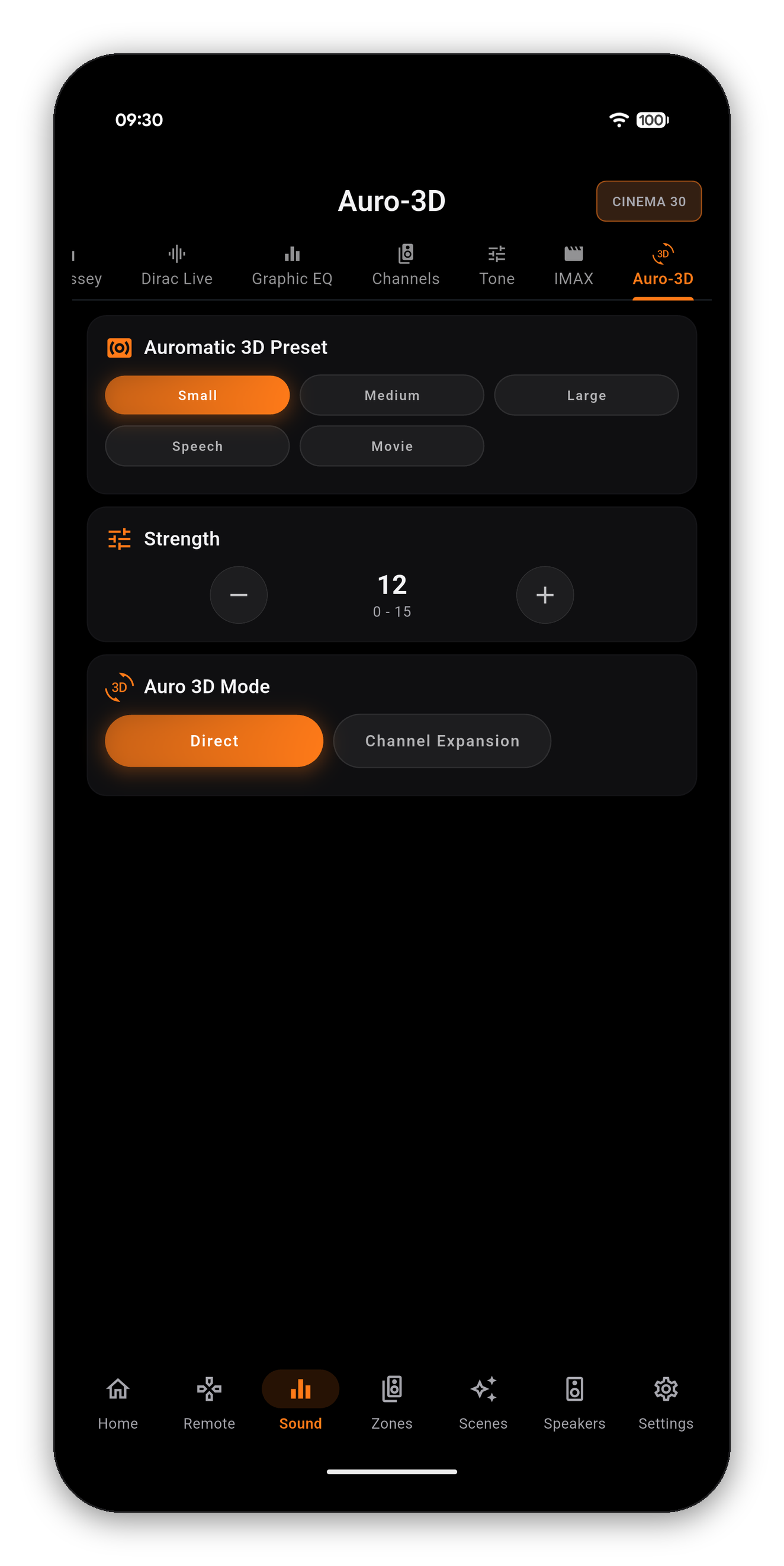
The Auro-3D page with preset, strength and mode
Common questions

Sound tab FAQ

Why does the list of sound modes change?
Because the receiver's list changes. The modes a Denon or Marantz will accept depend on what it is decoding: a two-channel stream offers the upmixers, an Atmos stream offers the Atmos-capable modes. AVR Maestro reads the current list off the receiver each time rather than showing a fixed menu that would be wrong half the time.
Why is a control greyed out with N/A?
N/A means the receiver has no value for it in the current state - usually because the incoming signal does not carry the feature. Tap the question mark next to the row and the app explains which signal would enable it. A grey control is never a bug being hidden; it is the receiver's own answer.
What is the difference between Channels and Levels?
Channels (Sound tab) is the live per-channel trim for the signal playing right now. Levels (Speakers tab) is the per-speaker reference level stored on the Speaker Preset by your calibration. Adjusting Channels does not rewrite your calibration.
Can I use Tone Control and Audyssey together?
Not while Dynamic EQ is on - the receiver takes ownership of the tone controls. Turn Dynamic EQ off on the Audyssey page and Bass and Treble become editable again.
Do I need to be on the same network?
Yes. AVR Maestro talks to your receiver directly over your LAN, with no cloud account and no relay server in between. See Getting started.

The whole audio menu, from the couch

One-time purchase, no ads, no subscriptions. Connect in under a minute.

Get it on Google Play Download on the App Store Download on the Mac App Store Get it on the Microsoft Store

Back to the full User Guide →